A guide to getting ergonomic with your terminal
The first time you use a terminal it feels clunky.
As a result you might prefer using a GUI program for most things you do.
After using this guide you will have a terminal that feels so good, you won’t want to use anything else.
And you’ll look cool. \
Terminal
Choose your terminal
Default terminals suck. You should find a better one.
I use Kitty, because the configuration is all in one file, and it is GPU accelerated, so it’s fast.Theme
While you’re at it, you should pick a color theme.
I like catpuccin, because it is available in other applications I use.Tabs and Windows
One terminal isn’t enough.
You’ll soon want multiple terminal sessions running simultaneously.
Most terminal applications have the concept of tabs and windows.
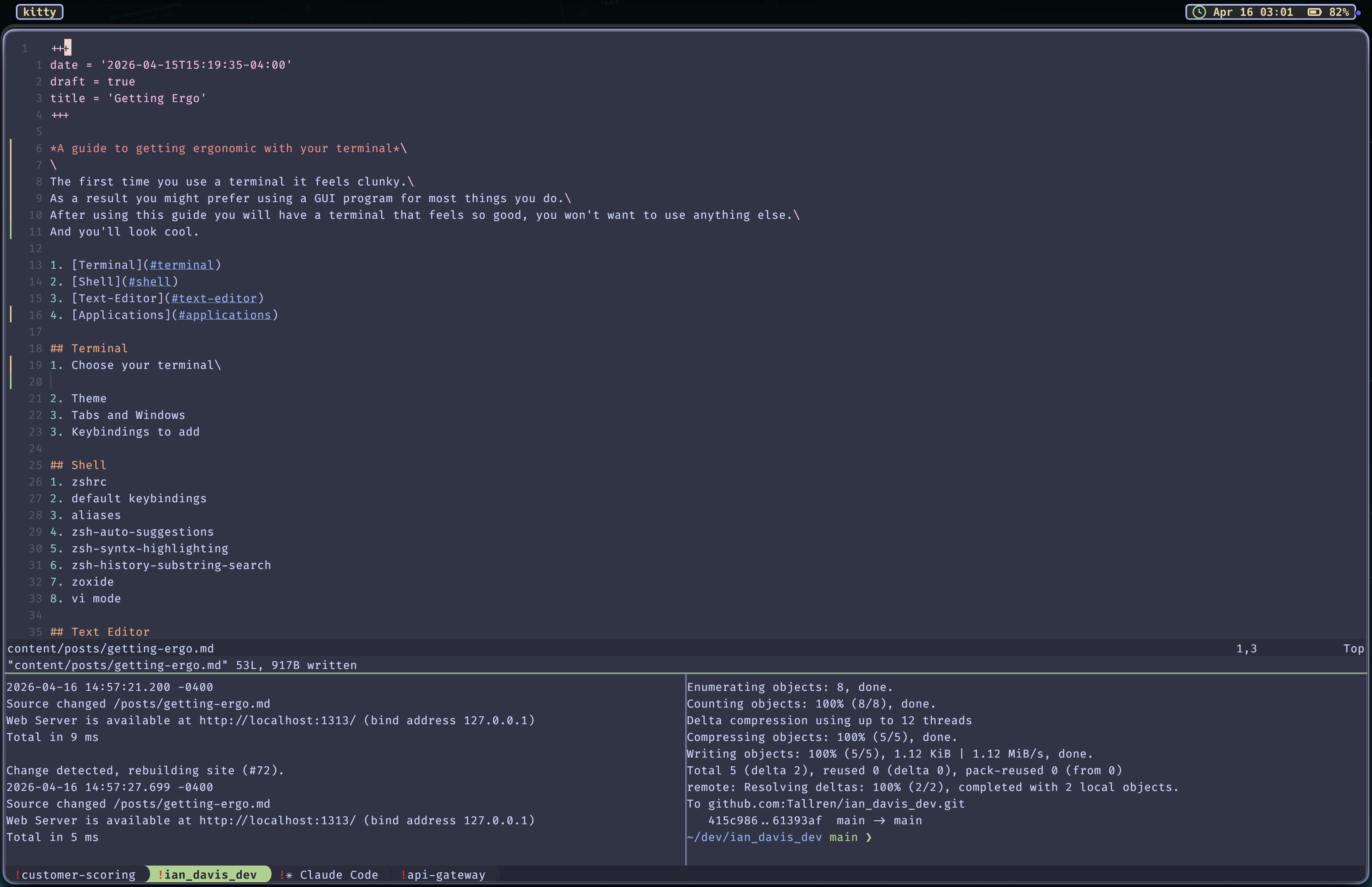
For example, I will usually have multiple tabs, one for each project I’m looking at, and multiple window splits per tab with neovim, cmd line, and claude code.
If don’t want to use the default kitty tabs and windows, you can look into tmux.Keybindings to add
Ditch your mouse.
The beauty of using a terminal is that everything can be done from your keyboard.
This is where you start to get really ergo.
You will build muscle memory with custom keybindings you set, so you can get fast as heck. Add keybindings to:- open and close new window splits (cmd + enter, and cmd + w)
- cycle through layouts (shift + ctrl + l)
- switch between window splits (cmd + [, and cmd + ])
- open and close new tabs (cmd + t, and cmd + w)
- switch between new tabs (cmd + shift + [, and cmd + shift + ])
Shell
Your shell is a command interpreter that lets you interact with your operating system’s kernel.
It gives you the power to do pretty much anything you need to do on your computer.
There are many different shells to choose from, and you can tell your terminal program which one to use on startup.
I use zsh (Z Shell).
Dotfiles
A dofile is a file prepended with a dot(.) usually used to configure programs, and is hidden from the user by default.
Using ls will not show dotfiles unless the -a flag is applied.
The Mac finder by default doesn’t show dotfiles unless you use the key chord cmd + shift + .
Run command files
A run command file is a hidden dotfile used to configure programs.
Z Shell uses the .zshrc
These dotfiles will go in our user’s home directory which is aliased to tilda (~).
In the .zshrc we can set environment variables, create aliases for commands, and configure shell plugins.
When you make a configuration change to your zshrc you will need to source the rc file again with . ~/.zshrc to see the changes reflect in the current shell session.
Zsh Default Keybindings:
In zsh there are some default keybindings that are useful.
Ones I use more often are:
ctrl + wwill backspace whole words.ctrl + rwill allow you to select commands from your history.
You can find more if you run the commandbindkey -L.
I really like using vi mode since I’m a vimmer. Addbindkey -vto your zshrc to allow vim like editing of the current command input.
Aliases
Aliases are very useful for shortening long commands you use a lot.
To add an alias you will need to add a line to your ~/.zshrc.
Example: alias moon="curl wttr.in/Moon"
Plugins
Plugins are essential to zsh to make it ergonomic.
To add them, you can use a plugin manager like Oh My Zsh, or you can do what I do and install them with Homebrew
Then just source the plugins in your zshrc. example: source $(brew --prefix)/share/zsh-syntax-highlighting/zsh-syntax-highlighting.zsh
Plugins I use:
zsh-autosuggestions Gives auto-completion suggestions to your commands based off of previous usage.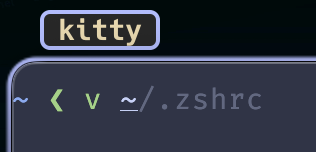
zsh-syntax-highlighting Your command turns green if it’s a valid command, otherwise it’s red
zoxide Keep a history of directories you’ve cd’d to, and allows you to type only part of the path to cd.
Text Editor
I use Neovim for my main text editor. I like it because,
- I can stay in my terminal.
- It’s all lua scripts and dotfiles so I can keep my config consistent using source control.
- It’s vim, and vim motions make me faster.
I will always recommend vim over other text editors because it comes default on most unix based operating systems and the commands make you fast.
However, vim is a steep learning curve compared to other text editors.
Whichever text editor you use, you should learn/customize the keybindings so you reach for your mouse less.
Applications
Useful
- jq I use this a lot for formatting json. You can also use it to extract values from big json blobs, which becomes extremely convenient. \
A nice trick is to open a blank file in vim, paste your single-line unformatted json and run
:!jq %which will format the entire file so you can read the json. - rg A fast af replacement for traditional grep. Built with rust. I use this when I’m looking for code usages across multiple repositories.
- fzf A fuzzy finder in your terminal. Super versatile. You can pipe any command output to this to help you search through a lot of lines.
I use this in an alias to find repositories and cd into them:cd $(fd -t d --exclude allure-results --exclude node_modules | fzf) - cal Usually pre-installed on unix systems. A handy quick way to view a calendar.
Use
cal -3to see a 3 month period. - neofetch Displays system information if you want to quickly look up your system’s ram, cpu architecture, etc.
Fun
- smassh A typing practice app similar to monkeytype, but in your terminal.
- figlet Create ascii words in different styles. Good for app banners.
- asciiquarium A fun little terminal aquarium.
brew install asciiquarium. - cmatrix Makes people think you’re a hacker.
brew install cmatrix.
Source Control
The cool part about all of this configuration is that you can store your dotfiles, and keep record of your brew installed apps in source control.
That way you can recreate your setup easily when you switch computers.
I personally have a work macbook, and a personal one.
When I make a change to my configurations I can just push them up to my github so I can pull them down in my other mac.
To do this, you can store all of your dotfiles in a single directory, and symlink your files from your user’s home.
I use a unix command stow that automatically creates the symlink for the files in their parent directory.
I also use the command brew bundle dump to create a Brewfile that lists all of my brew installed packages.
I keep that alongside by dotfiles, so I can use brew bundle install to install of the brew packages in one go.
Check out my dotfiles repo, to see my entire config. The scripts directory shows the setup scripts I use to get everything set up on a new computer automatically.
